
Set up: app, folder, project, instructions
Six steps, done once. After that every task starts in the right folder with your rules already loaded.
Install Claude Desktop
Download from claude.com/download (macOS or Windows, latest version). Cowork needs a paid plan: Pro, Max, Team or Enterprise. Free accounts do not get it. On Enterprise an admin must switch Cowork on for the organization first.
Cowork also works on the web and the phone app. Those sessions run in the cloud and can reach your files only through a desktop app that is open.
Find Cowork
Older layout (Team, Enterprise): under the message box, click Cowork in the Chat | Cowork switch.
New layout (Pro, Max after the merge): there is no switch. Describe the task in any conversation.
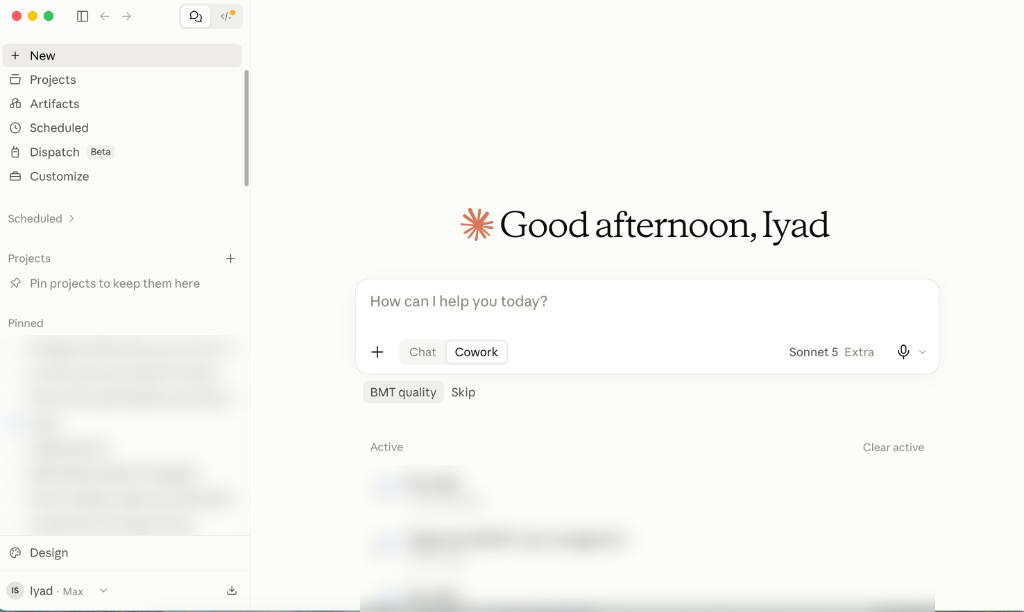
Give it one working folder
Cowork can read and write only in folders you connect. Make a new, empty folder called Documents/Cowork Playground and connect only that one. Do not connect Desktop, Downloads or your whole drive. The first time, Cowork asks for access to the folder.
Keep every file you work on inside the playground. A file dragged in from Downloads may appear in the task, but Cowork cannot read it.
▶ See it in Jeff Su's video (03:19)
Folders you have connected show under Settings → Trusted folders. You can remove them there.
Make a project
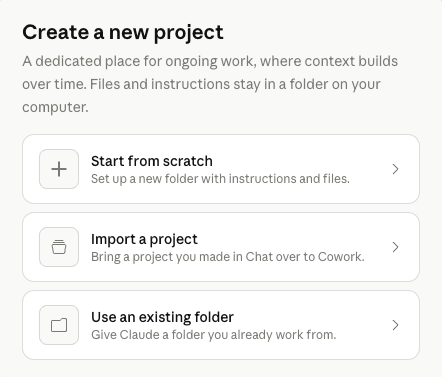
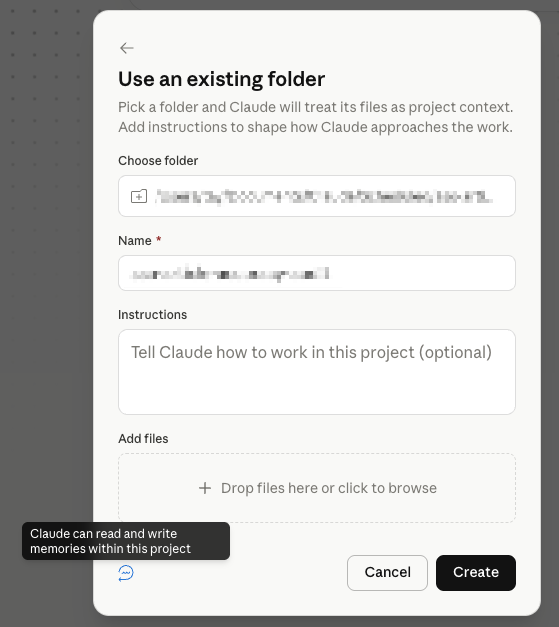
A project keeps files, instructions, scheduled tasks and memory for one piece of work. Sidebar → Projects → +. Pick Use an existing folder and choose your course folder.
Write your standing instructions
Global instructions apply to every session: Settings → Cowork → Edit in the older layout, Settings → General → Instructions for Claude in the new one. Keep them short. Start with guardrails, like training wheels you remove later.
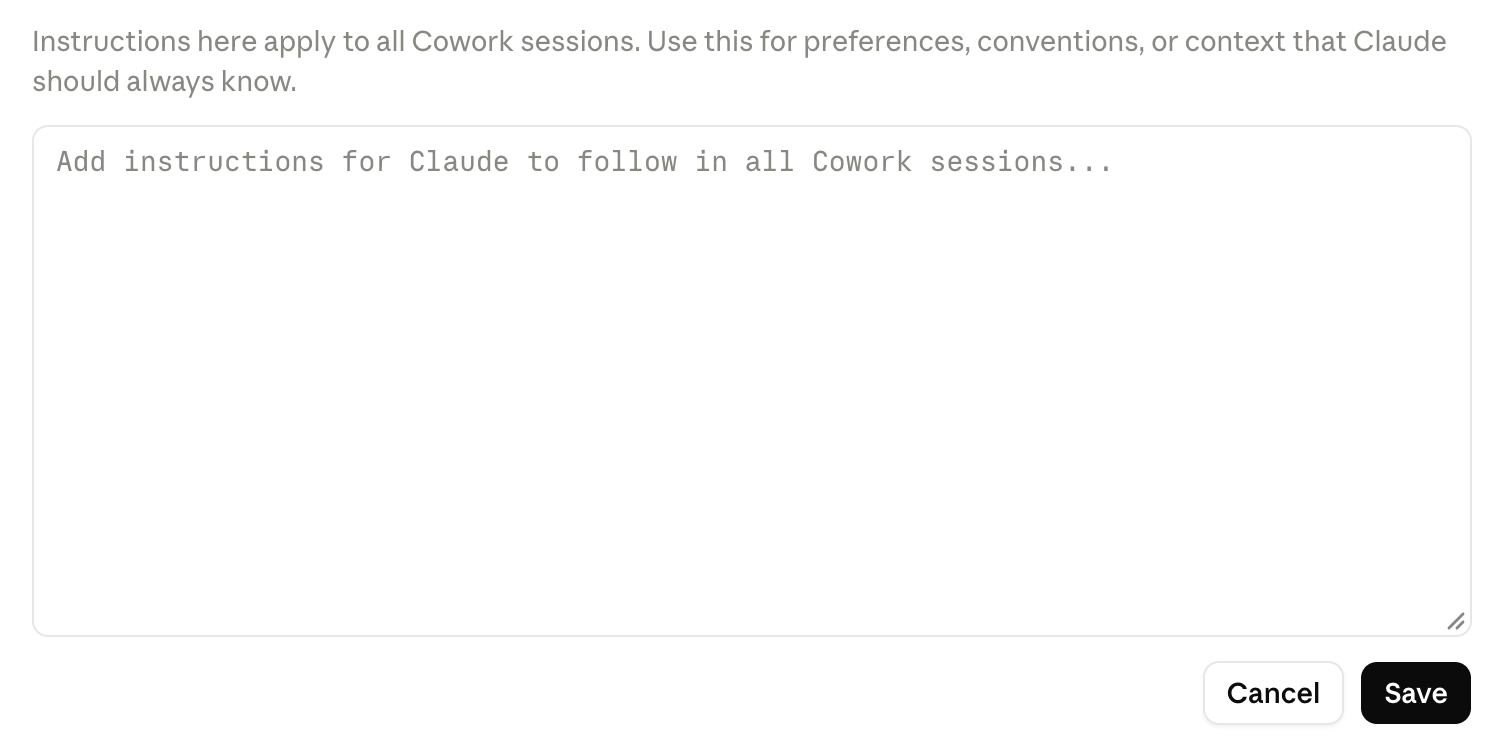
I work at King Hussein Cancer Center, Amman.
Write in plain English, short sentences, British spelling.
Save every output in the folder I connected, never elsewhere.
Ask before deleting, moving, or overwriting any file.
If a file looks like it holds patient identifiers (MRN, name, national number), stop and tell me.
Use the KHCC colours for slides: teal #237A9B, gold #E4B325, magenta #B6447D.
While in Settings, open Capabilities and turn on both memory options.
▶ See it in Jeff Su's video (02:19) · settings and starter instructions
Memory lives in files you can read
Cowork can keep what it learns in two plain files at the top of your folder: CLAUDE.md (how to work here) and memory.md (what it has learned from your corrections). Open them, read them, edit them.
Try it on a synthetic minutes file: ask for a 200-word summary, rewrite it the way you like, then say:
I changed your summary. Compare your version with mine and save my preferences in CLAUDE.md and memory.md at the root of this folder, so you follow them next time.
Every correction you save makes the next run closer to how you work. Never let a patient detail land in these files.
▶ See it in Jeff Su's video (06:14) · persistent memory
Go deeper: see a full CLAUDE.md turn five ward policies into a wiki and a quality review ›