Chapter 16: Worktrees and Parallel Claudes
Imagine you could clone yourself. One clone goes to exam room 3 to see the new consult. A second clone reviews the chemo orders waiting in the pharmacy. A third clone sits at the workstation finishing the discharge summary. At the end of the day, the three clones meet, compare what they did, and merge their notes into a single chart.
That is what a git worktree lets you do with code. One repository, three working copies, three Claudes thinking in parallel, no interference between them.
This chapter is about the most powerful productivity feature in Claude Code, and the one with the most intimidating name.
First, A Word About Branches
Before we can talk about worktrees, we have to talk about branches, because a worktree holds one.
A branch in git is a parallel version of the same codebase. You can experiment in one branch — change files, add code, break things — while another branch (usually main) sits untouched and safe. When the experiment works, you merge it back into main. When it doesn’t, you throw the branch away and main is unaffected.
The medical analogy: a branch is like working on a draft of a clinical protocol in a side document while the live protocol stays in effect. Your changes do not affect patients until you formally merge them in.
Normally, your repo can only show you one branch at a time. To switch from branch A to branch B, you run git checkout B, and your folder’s contents change to match branch B. Branch A is still there, but you cannot see it on disk anymore.
That is fine when you only do one thing at a time. It is painful when you are juggling three.
What a Worktree Actually Is
A git worktree is a feature git has had since 2015 that almost nobody uses. It lets one git repository have multiple working folders on disk at once, each one checked out to a different branch, all sharing the same underlying history.
In plain terms: instead of git checkout feature-X (which swaps your one folder over to feature-X, hiding main from view), you run a worktree command that creates a second folder next door, with the same repo, on a different branch. Two folders on disk. Two branches checked out. One shared history. Zero conflicts.
🧠 Remember. A worktree is not the same as a clone. Cloning duplicates the entire history, takes minutes for a big repo, and loses your local configuration. A worktree is instantaneous, shares the same history, and is designed to be thrown away when the task is done.
Why This Matters for Claude Code
Claude Code, by default, operates inside whatever folder you launched it from. One terminal, one Claude, one branch. If you open a second terminal and run claude in the same folder, you now have two Claudes editing the same files at the same time — a recipe for one of them overwriting the other’s work.
Worktrees fix this cleanly. One worktree per task = one Claude per task = no interference.
The --worktree Flag
Claude Code has a built-in shortcut for the whole flow:
claude --worktree feature-auth
or the short form:
claude -w feature-auth
This does three things in one shot:
- Creates a new git worktree under
.claude/worktrees/feature-auth/at the root of your repository. - Creates a new branch for it, named
worktree-feature-auth, starting from your repository’s default branch (usuallymainas it stands on the remote) — so every worktree begins from a clean, known baseline, not from whatever half-finished state you happen to have checked out. - Launches Claude with that worktree as its working directory.
When you exit that Claude session, cleanup depends on what happened inside it. If the worktree has no uncommitted changes, no untracked files, and no new commits, Claude Code removes the worktree and its branch automatically. If you did make changes, Claude asks whether to keep the worktree — so you can come back to it later — or remove it, discarding the work.
💡 Tip. Add
.claude/worktrees/to your.gitignoreso worktree folders do not show up as untracked files in your main checkout. Other useful supporting commands:git worktree listshows every worktree currently attached to the repo, andgit worktree remove <path>cleans one up.
Three Terminals, Three Claudes
The real productivity move: open three terminal windows. In each one, launch Claude in a different worktree.
# Terminal 1
claude -w aki-cohort-sql

# Terminal 2
claude -w pathology-prompt-tweak

# Terminal 3
claude -w dashboard-refactor
Three Claudes, three branches, three working folders. They cannot step on each other because they are literally in different directories. You can give each one a task and rotate your attention between them as they think.
🔧 Technical Stuff. Each worktree has its own untracked-file state and can have its own
.claude/configuration if you set one per worktree. Hooks, slash commands, and skills installed at the user scope are shared across all worktrees. The project-scopeCLAUDE.mdis shared because it lives in the tracked code. This is usually what you want.
Subagents Can Get Their Own Worktrees
This is the under-advertised combination. By default, when a Claude session spawns a subagent (Chapter 13), the subagent works in the same folder as the main session — its file edits land in your working directory. For read-only research subagents, that is fine. For subagents that edit, it is exactly the collision problem worktrees exist to solve.
The fix is one line. Add isolation: worktree to a subagent’s configuration file — or simply tell Claude “use worktrees for your agents” — and that subagent runs in its own temporary worktree: a clean copy of the repo, its own branch, removed automatically if the subagent finishes without making changes. So if your main Claude delegates “refactor the lab-reconciliation pipeline” to a worktree-isolated subagent, the subagent does its work and reports back the diff without ever touching the file you are editing in the main session.
This is what makes agent teams (Chapter 13) safe in practice. Five subagents writing to one shared folder would be chaos. Five subagents in five worktrees is just five normal Claude sessions running in parallel without stepping on each other.
🧠 Remember. Worktrees are what make parallel Claude work safe. Without them, “two agents on one repo” is a foot-gun. With them, it is a force multiplier.
When to Use a Worktree (and When Not To)
Use a worktree when:
- You have two or more genuinely independent tasks and want them in parallel.
- You are starting an experiment that you might throw away, and you don’t want to clutter your main branch.
- You are in the middle of a long refactor on one branch and need to ship an urgent fix on another.
- You are running an overnight long-running loop (Chapter 18) on one task and want to keep working on something else in the morning.
Don’t bother when:
- The task is a one-line fix. The setup cost is not worth it;
git stash(which sets your current uncommitted changes aside) is faster. - You are exploring a single repo with no plan to branch.
- You are still learning git basics. Get fluent with branches first; worktrees will click the moment branching does.
⚠️ Warning. A worktree is a real folder on disk holding real, possibly uncommitted, changes. If you delete a worktree folder by hand (
rm -rf) while it has uncommitted work, that work is gone forever — there is no undo. Always usegit worktree remove, which refuses to delete worktrees with uncommitted changes.
Merging Back
When a worktree’s work is ready to land in main, the flow is unremarkable. For a worktree created with claude -w feature-auth:
cd .claude/worktrees/feature-auth    # the worktree
git push -u origin worktree-feature-auth
gh pr create                         # if you use GitHub
# or merge locally:
cd ../../..                          # back to the main folder
git merge worktree-feature-auth
git worktree remove .claude/worktrees/feature-auth
git branch -d worktree-feature-auth  # if the branch is now done
Same as merging any other branch. The only worktree-specific step is the cleanup at the end.
The KHCC Example
It is Tuesday afternoon. You have three things on your plate:
-
New AKI cohort SQL. A surgeon has asked for a cohort of post-operative AKI cases, stratified by procedure type, so she can study which surgeries carry the highest kidney injury risk. The AKI Notification Pipeline (Chapter 0.5) already has the staging logic; you need a new SQL query on top of it. You have not written it yet.
-
Pathology extraction prompt tweak. Last night’s eval run on the Pathology Extraction Pipeline flagged a regression on T-stage extraction for breast cancer reports — accuracy fell from 0.93 to 0.87. The prompt needs adjustment and the eval needs to be re-run against the deceased-patient cohort.
-
Chemo prep dashboard refactor. The Chemotherapy Preparation Checker’s Streamlit dashboard has been on your conscience for two weeks. The patient-card component is duplicated in three places; you want to extract it into a reusable widget.
You could try to do all three sequentially and finish at 8 PM. You could try to do them in one Claude session and watch the context window collapse by task two. Or:
claude -w aki-cohort-sql
# Terminal 2:
claude -w path-prompt-fix
# Terminal 3:
claude -w dashboard-refactor
Now three Claudes are thinking in parallel. Claude 1 is reading the AKI pipeline code to learn the cohort conventions. Claude 2 is loading the frozen deceased-patient eval cohort and looking at the T-stage mismatches. Claude 3 is mapping out how to extract the Streamlit component.
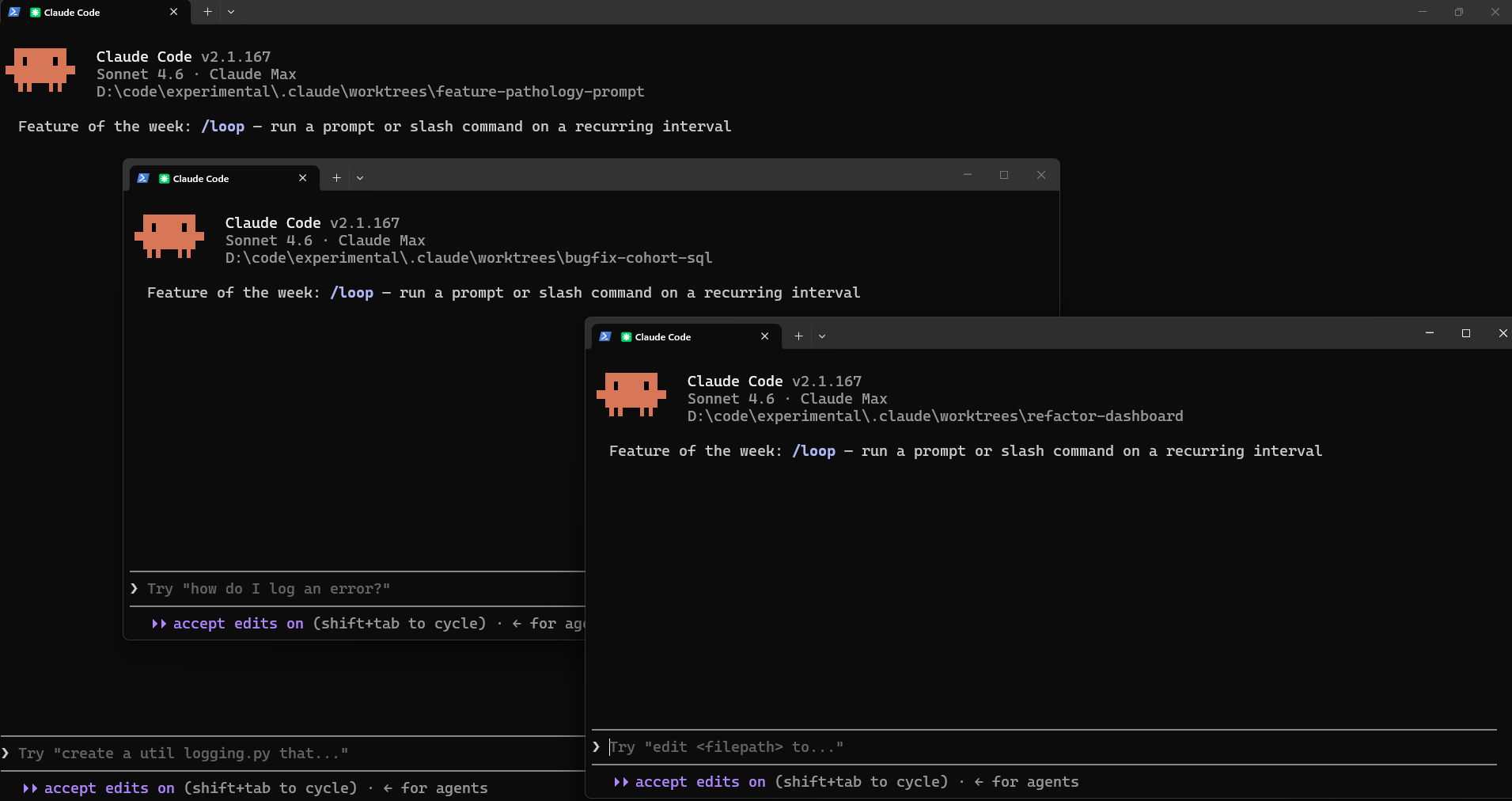
You start them in that order, then come back to Claude 1, review the draft cohort SQL, kick off a sample query, then check in on Claude 2 while Claude 1 runs. By the end of the afternoon, all three branches have draft pull requests open, and you have switched between them maybe six times. None of them touched the others’ files. None of them got confused about which branch they were on. None of them produced a merge conflict.
This is what people mean when they say Claude Code multiplies throughput. Not that one Claude writes faster than you. What multiplies throughput is three Claudes running in parallel while you supervise one at a time.
💡 Tip. Name worktrees after the task.
claude -w aki-cohort-sqlputs the work in a folder calledaki-cohort-sqlon a branch calledworktree-aki-cohort-sql. When you have several worktrees open at once and need to remember what each one does,git worktree listreads like a to-do list.
Try This
- In an existing git repo, run
git worktree add ../experiment -b experiment-branch. Open the new folder in your file explorer. Confirm it looks like a normal checkout of the repo on a different branch. - In your original folder, edit a file but don’t commit it. Switch into the worktree folder. Notice your uncommitted change is not there: each worktree has its own working state.
- Now try
claude -w try-worktree. Make no changes, exit. Rungit worktree listand confirm the worktree under.claude/worktrees/was auto-cleaned. - Open three terminals, three worktrees, three different tasks. Notice how the mental load of “which branch am I on” disappears completely.
Watch Out
- Don’t share a worktree across two Claude sessions. That defeats the whole point. One worktree, one Claude.
- Don’t worktree everything. Three running in parallel is a sweet spot. Eight worktrees is eight Claudes you cannot supervise — you will lose track of what each is doing.
- Clean up.
git worktree listshould not have entries from three months ago. Stale worktrees rot — branches drift, conflicts accumulate. - Auto-cleanup only happens on a clean exit. If you force-kill Claude (Ctrl-C aggressively, or close the terminal window), the worktree stays. Check
git worktree listperiodically and remove strays withgit worktree remove. - CLAUDE.md is shared across worktrees. A change you make in one worktree’s
CLAUDE.mdwill appear in the others as soon as you commit and merge. Don’t put per-task instructions there; put project-wide ones.