Chapter 0: What Is a Terminal?
Before we can talk about Claude Code, we need to talk about the room it lives in. That room is called the terminal. If you’ve never opened one, this chapter is for you. If you have, skim it for the analogies — you may want them later when you’re explaining all this to a colleague.
🧠 Remember. A terminal is just a typing-only way to talk to your computer. That is the entire idea. Everything else in this chapter is detail.
The world you already know
When you use the hospital information system, you click. You click on the patient’s name. You click on “Orders.” You click on “New Order.” You scroll. You click again. The system shows you menus and buttons, and you choose.
That kind of program is called a graphical user interface, usually shortened to GUI (pronounced “gooey”). Windows, macOS, Excel, your email, the EMR — all GUIs. The screen shows pictures of things, and you point at the pictures with a mouse.
The terminal is the older sibling of all of those. Before there were pictures and buttons, there was just a screen full of text, and you typed what you wanted. The computer typed back. That was the whole conversation.
That conversation never went away. It still works. And it still does things the GUI can’t do — especially anything you want to repeat, automate, or share with a teammate as a reproducible script.
How to open a terminal
Most clinicians have never opened a terminal. Here is how, on each of the three operating systems you are likely to use.
On a Mac
- Click the magnifying-glass icon in the top-right of the screen (Spotlight Search). Or press ⌘ + Space on the keyboard.
- Type the word Terminal — just that word.
- Press Enter. A window opens with a dark background and a few lines of text.
- The last line ends with a symbol — usually
%on modern Macs (zsh shell) or$on older ones (bash shell). That symbol is the prompt. Anything you type appears just after it.
That is the terminal. Leave it open for the rest of this chapter.
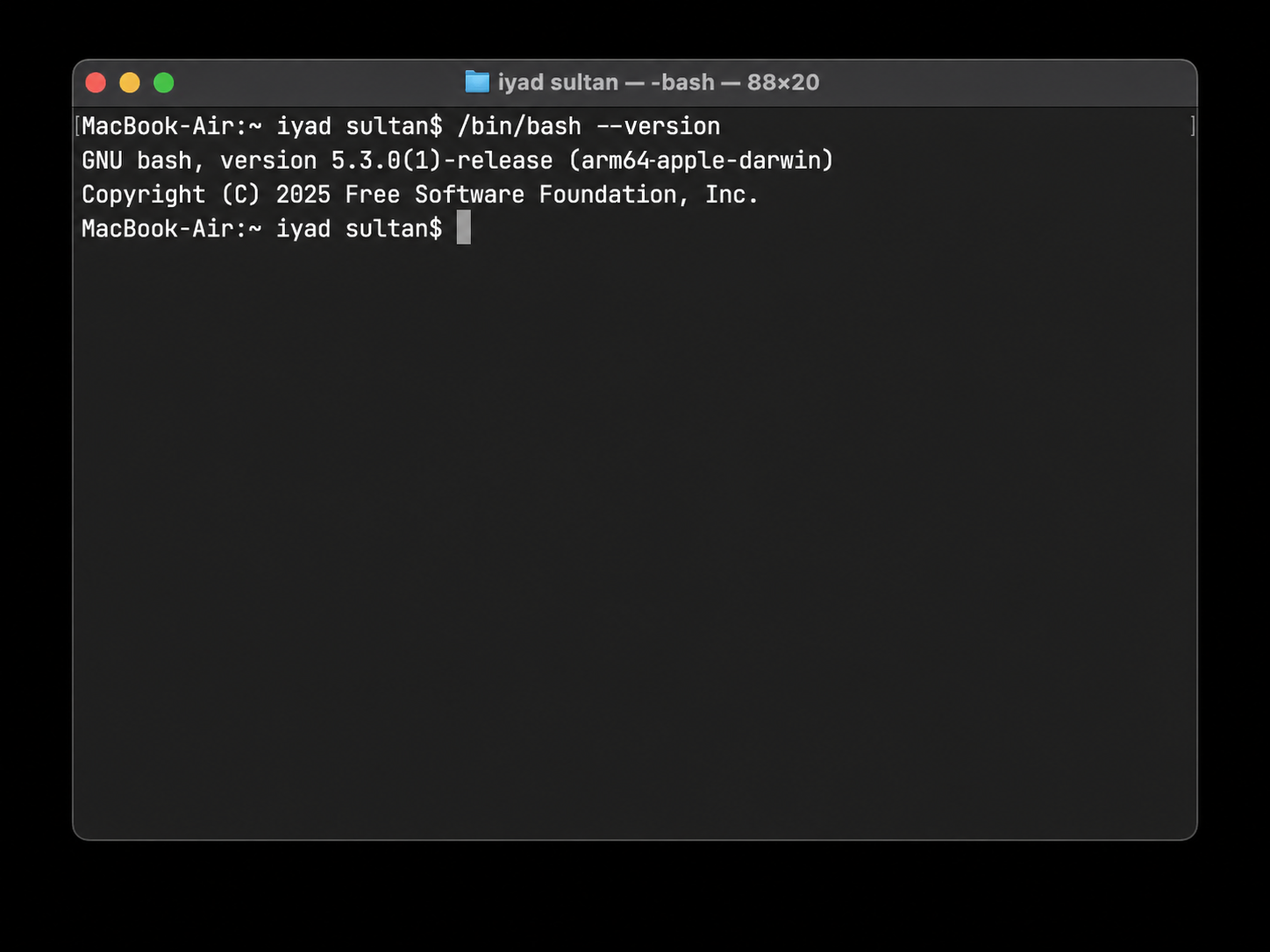
% prompt.On Windows
There is more than one terminal on modern Windows, and any of them will do for this book. We recommend PowerShell because it is included with every Windows install, requires no setup, and runs Claude Code natively.
- Press the Windows key (the one with the four-square logo, between Ctrl and Alt).
- Type PowerShell.
- Click “Windows PowerShell” in the results — on newer machines it may be labeled just “PowerShell” or open inside an app called “Windows Terminal”; all of these are fine. Avoid “PowerShell ISE” and the “Administrator” variants for now.
- A window opens with a dark blue background. The last line reads something like
PS C:\Users\Iyad>— the>at the end is the prompt.
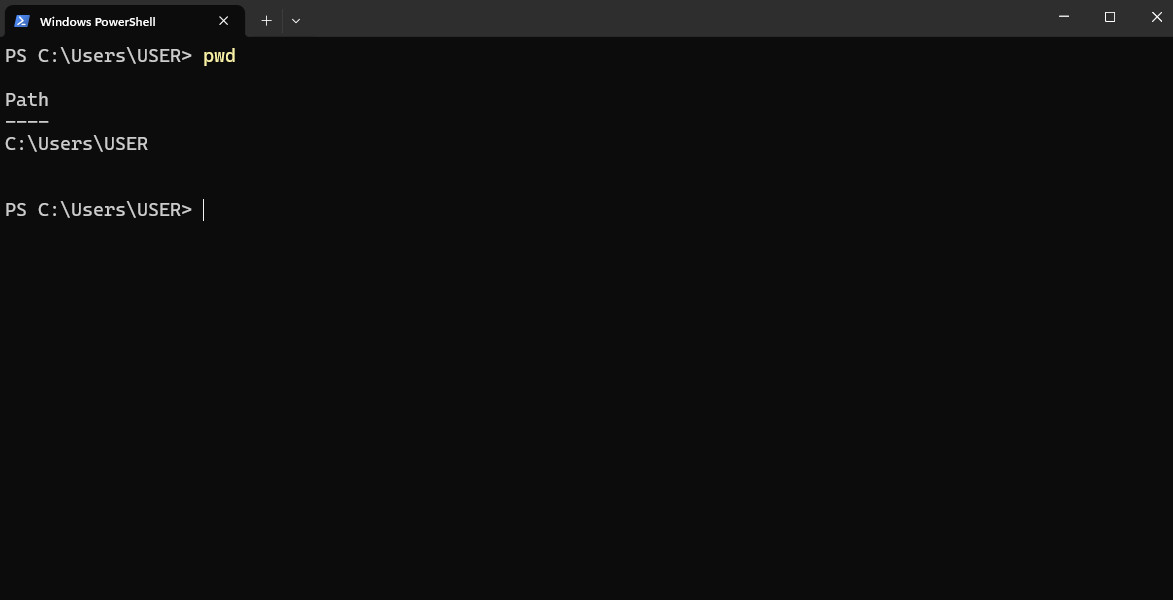
PS C:\Users\Iyad> prompt.You may hear that Windows users need something called WSL (Windows Subsystem for Linux) — an optional add-on that gives Windows a Mac-style Linux terminal. You don’t. Claude Code runs natively in PowerShell, and everything in this book works there. Chapter 2 mentions WSL briefly for readers who want a Linux environment; for everyone else, PowerShell is enough.
On Linux
If you are running Linux (Ubuntu, Fedora, Debian, or any of the others), you probably already know where your terminal is. If not:
- Find the “Activities” overview (Ubuntu) or the application launcher (other distros).
- Type Terminal or look for an icon labeled “Terminal” or “Konsole.”
- Click it. A window opens with a prompt ending in
$.
Once it is open
Whichever operating system you are on, the experience from this point forward is essentially identical. The prompt is the prompt. Commands behave the same. The only differences are subtle: the names of a few system commands (like ls vs dir) and the layout of the file system (/Users/Iyad/ vs C:\Users\Iyad\). We will flag those differences as they come up.
💡 Tip. Make the font larger before you go further. On Mac: Cmd + Plus (a few times). On Windows: hold Ctrl and scroll the mouse wheel up — this works in both PowerShell and Windows Terminal. Reading a small terminal at the end of a long clinic day is no fun.
What you actually see
Look at the prompt. It is a single line that ends with a symbol — %, $, or > depending on your system. The text before that symbol typically tells you your username and which folder you are currently in. For example:
USER@LAPTOP:~$
The prompt — the % or $ (Mac/Linux) or > (PowerShell) — is the terminal’s way of saying I am ready. Type something.
That’s it. There are no menus. No buttons. No tabs. Just a prompt waiting for a sentence.
💡 Tip. When you read terminal instructions in this book or anywhere else, lines that start with
$are showing you the prompt followed by what you should type. Don’t type the$itself. It’s already there. You’re typing the part after it.
What you can do at a prompt
You type a command — a word the computer recognizes — and you press Enter. The computer does the thing, then comes back with the prompt and waits for your next sentence. That’s the entire loop:
- You type something.
- You press Enter.
- The computer responds (with text, or with nothing if it succeeded silently).
- The prompt comes back.
Here are five commands that work today, on almost every computer in the world. Try them. Nothing here can hurt anything.
| You type | What happens |
|---|---|
pwd |
“Print Working Directory” — tells you which folder you are currently in. Like clicking the breadcrumb at the top of File Explorer. |
ls (Mac/Linux) or dir (Windows) |
Lists the files and folders in your current folder. |
cd Documents |
“Change Directory” — moves you into a folder called Documents. |
cd .. |
Moves you up one folder. (The two dots mean “the folder above this one.”) |
clear |
Wipes the screen so you can start fresh. Doesn’t delete anything; just gives you a clean view. |
If you type all five of those, in order, you will go on a small tour of your computer’s filing system, in text. You will see exactly the same files you’d see in Finder or File Explorer, but listed as text.
The medical analogy
If this still feels foreign, try this comparison. In the EMR, when you want to order Vancomycin 1g IV q12h, you click through a series of menus until the order is built. The order is the verb; the menus are the GUI.
In the terminal, you’d type something that means the same thing — one short sentence that names the verb and its arguments — and press Enter. The structure is identical: a verb (the command) and some details (the arguments). The only difference is whether you click for them or type them.
A pharmacist who builds order sets is already thinking in this structure. A nurse who copies a medication name into a search box is already typing a kind of command. The terminal just removes the wrapping paper.
Why anyone would prefer this
Three reasons. They matter for the rest of the book.
1. Repeatability. When you click through a menu, the next person can’t see what you did. They have to ask. When you type a command, you can copy it, paste it into an email, paste it into a script, and someone on the other side of the building can run exactly the same thing. Pharmacy informatics calls this “scriptable.” It is how the AI Office nightly extractions and the eval pipelines actually move data — not by anyone clicking buttons at 2 AM, but by a written instruction the computer executes.
2. Speed (for the practiced). Once a few commands are in your fingers, doing things in the terminal can be 5–10 times faster than the equivalent menu hunt. This is why the IT staff you’ve watched type fast at black screens look like they’re casting spells. They are not. They have memorized seven verbs.
3. Access to tools that have no GUI. Most of the modern data-science and AI ecosystem — Python, R running headless, git, Claude Code itself — lives in the terminal. If you only know GUIs, half the toolbox is closed to you.
🧠 Remember. Claude Code is a terminal program. It lives in the same window as
lsandpwd. That’s why the book opens here: if you can find the prompt, you can find Claude.
The bits of vocabulary you actually need
You will hear these words in the rest of the book. Memorize the meaning, not the word.
- Terminal — the application (window) you type into.
- Shell — the language the terminal understands. On Mac and most Linux it’s called bash or zsh. On Windows it’s PowerShell. (Some Windows users also run bash through WSL, the optional Linux add-on mentioned earlier — not required for this book.) Treat “terminal” and “shell” as roughly the same idea for now.
- Prompt — the symbol that means “I’m ready” (
$,>, or%). - Command — the verb you type (
ls,cd,pwd). - Argument — the noun that comes after the verb (
cd Documents—Documentsis the argument). - Flag or option — modifiers, written with one or two dashes (
ls -lshows files in “long” format with sizes and dates). - Path — the address of a file or folder.
C:\Users\Iyad\projects\aki_extraction\app.pyis a path on Windows./Users/iyad/projects/aki_extraction/app.pyis the equivalent path on Mac. - Directory — same thing as a folder. The terminal calls folders “directories” because it’s old.
- Working directory — the folder you are currently in, where commands default to operating. Like the current chart you have open.
That’s the whole vocabulary. Everything else in this book is built on those eight words.
A worked example: opening a folder
Suppose you have a folder on your desktop called aki-project. In the GUI, you’d double-click your way there. In the terminal, you’d do this:
$ cd Desktop
$ cd aki-project
$ ls
README.md  app.py  data/  notebooks/
Three short lines. The first moves into the Desktop folder. The second moves into the aki-project folder. The third asks “what’s here?” and the terminal lists four items. That’s it. You are now “in” the project, exactly the same way as if you’d double-clicked.
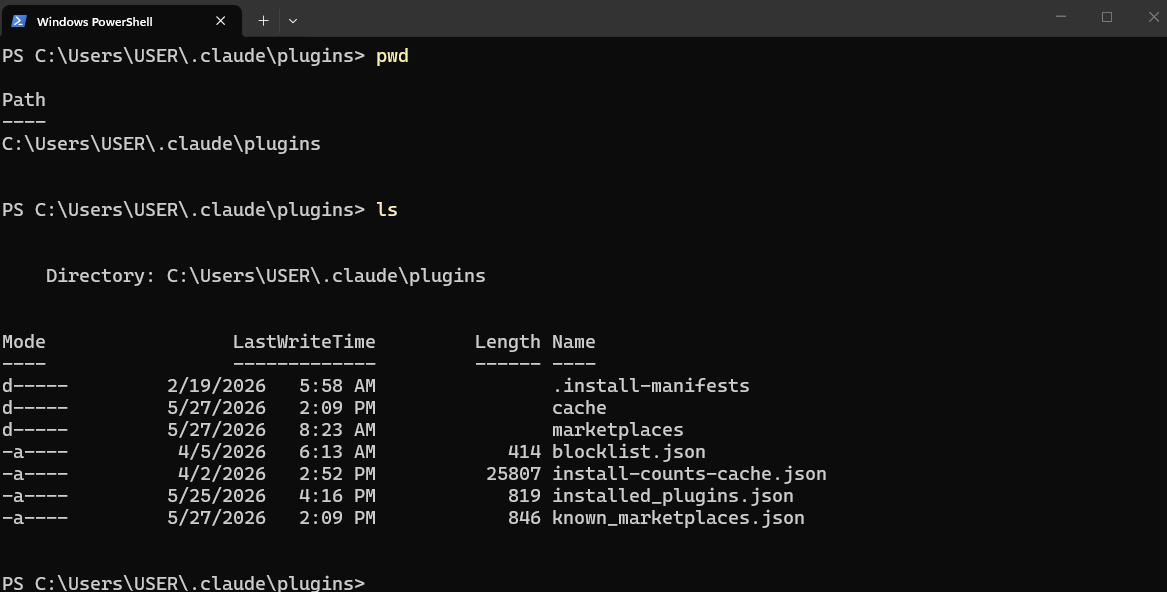
pwd followed by ls, with a folder listing printed.When Claude Code starts in Chapter 1, the first thing it does is notice the folder you’re in. So this — knowing how to land yourself in the right folder — is the prerequisite skill for everything that follows.
⚠️ Warning. Capitalization matters in the terminal.
cd Desktopandcd desktopare not always the same command, and on Linux they are definitely different. If a command “doesn’t work,” check the capitalization first.
A worked example: running Python
You’re a clinician who took a Python short course. Someone sent you a script. In the GUI, you’d open it in a code editor and click a green Run button. In the terminal, you’d do this:
$ cd Downloads
$ python aki_summary.py
Patients in cohort: 142
Median creatinine baseline: 0.9 mg/dL
Stage 1 AKI: 47
Stage 2 AKI: 19
Stage 3 AKI: 8
Two short lines. The script does its thing, prints its result, the prompt comes back. There is no “where does the output go?” question — it goes to the screen, and you can scroll up to read it.
This pattern is what every clinical pipeline at KHCC really is, underneath: a script with a name, run from a terminal, that prints (or saves) what it found. The polish around it — the dashboards, the emails — is just decoration on top of python <script_name>.
When things “don’t work”
Three things go wrong for everyone the first month:
- Typo in the command. The terminal tells you so:
bash: lss: command not found. Read the message; it usually names the typo. Fix and retry. - You’re in the wrong folder.
lslooks empty, orpython my_script.pysays “file not found.” Runpwdto see where you actually are, thencdto where you meant to be. - You haven’t installed the thing you’re trying to use.
python: command not foundmeans Python is not installed (or not on the system’s list of known places). We cover installation in Chapter 2.
That’s it. Most “broken terminal” moments are one of these three.
Try This
If you’ve never opened a terminal before, do this once before you read Chapter 1:
- Open the Terminal app (Mac), PowerShell (Windows), or any terminal application (Linux).
- Type
pwdand press Enter. Note where you are. - Type
ls(Mac/Linux) ordir(Windows). Look at what’s in your home folder. - Type
cd Documentsand press Enter. Thenpwdagain. You moved. - Type
cd ..and press Enter. You moved back. - Type
clear. The screen wipes.
You have now used a terminal. You can stop thinking of it as a foreign country.
Watch Out
Two things to be careful about, from day one:
- Anything that starts with
rm(remove) deletes files permanently. There is no recycle bin. Don’t runrmuntil you understand it. - Anything that asks for your password (
sudoon Mac/Linux) is doing something that requires administrator rights. Don’t paste insudocommands you don’t understand; you can wreck a system that way.
For everything else in this book, we will tell you in plain language what each command does before we ask you to type it. You will never be asked to run something whose purpose hasn’t been explained on the same page.
Now turn the page. Before we install Claude Code, Chapter 0.5 gives you a short field guide to what the AI Office actually builds — the real projects every example in this book draws on.