Chapter 6: Context Like a Pro
The single most common reason Claude Code gives you a bad answer is not that the model is stupid. It is that you have given Claude too much to remember, or the wrong things to remember. This chapter teaches you how to keep Claude’s view of your work tidy.
What “context” actually means
Every time you talk to Claude, everything Claude can see right now is bundled together and sent to the model. That bundle includes:
- The instructions that came with Claude Code itself.
- Your
CLAUDE.mdfile (we’ll meet this properly in Chapter 10). - The conversation so far — every prompt you typed, every reply Claude gave.
- Every file Claude has Read.
- Every command’s output that Claude has Bashed.
- Every screenshot you have pasted.
That entire bundle is called the context window. It is Claude’s short-term memory for this session. It has a fixed size. When it fills up, things get crowded, and the quality of Claude’s answers drops.
The EMR analogy is exact. Imagine you open a patient’s chart. Then you open another. Then another. Then a third one alongside. After a while your screen is a wall of overlapping windows, and finding the one piece of information you actually need takes longer than if you’d closed the others first. Claude’s context window is the same. The more you pile in, the harder it is to find the right thing.
🧠 Remember. The context window is what Claude can see on the screen right now. When it gets cluttered, close some windows.
How big is the window?
In 2026, the numbers look like this:
- 200,000 tokens on most models — the standard window.
- Up to 1,000,000 tokens on the newest top-tier models, where a long-context option is available.
A token is roughly three-quarters of an English word. (Chapter 7 covers tokens in detail.) So 200,000 tokens is roughly 150,000 words, or about two long novels’ worth of text. One million tokens is about eight novels. You will not run out by accident on small tasks. You will run out by being careless on long ones.
Watching the window fill
Claude Code will tell you how full the window is — you just have to look. Two places to look:
- The status line at the bottom of the screen. As the window fills, it warns you how much room is left before the automatic cleanup (called auto-compact) kicks in.
- The
/contextcommand. Type it any time and Claude prints a map of what is inside the window right now — how much space the system instructions, yourCLAUDE.md, the conversation, and each file read are taking. This is how you find out what is eating the room, not just that it is being eaten.
Read the level the way you would a drug reservoir: plenty of room, keep working; about half full, start paying attention to what you load; near the limit, clean up now, on your terms — or Claude will auto-compact on its terms and may not keep the things you cared about.
💡 Tip. Run
/contextat the end of each big task. It is a free signal. Most people ignore it until things go sideways.
Symptoms of a dirty context
You will know your context is cluttered when:
- Claude forgets something you told it ten messages ago (“I asked you not to touch
prompts.py”). - Answers become more generic, less grounded in your actual code.
- Claude re-reads files it already read.
- Suggestions contradict earlier ones from the same session.
- Tool choices get erratic — Claude greps when it should read, reads when it should edit.
These are not bugs in the model. They are signs that the conversation has accumulated too much stale information. The fix is to clean up.
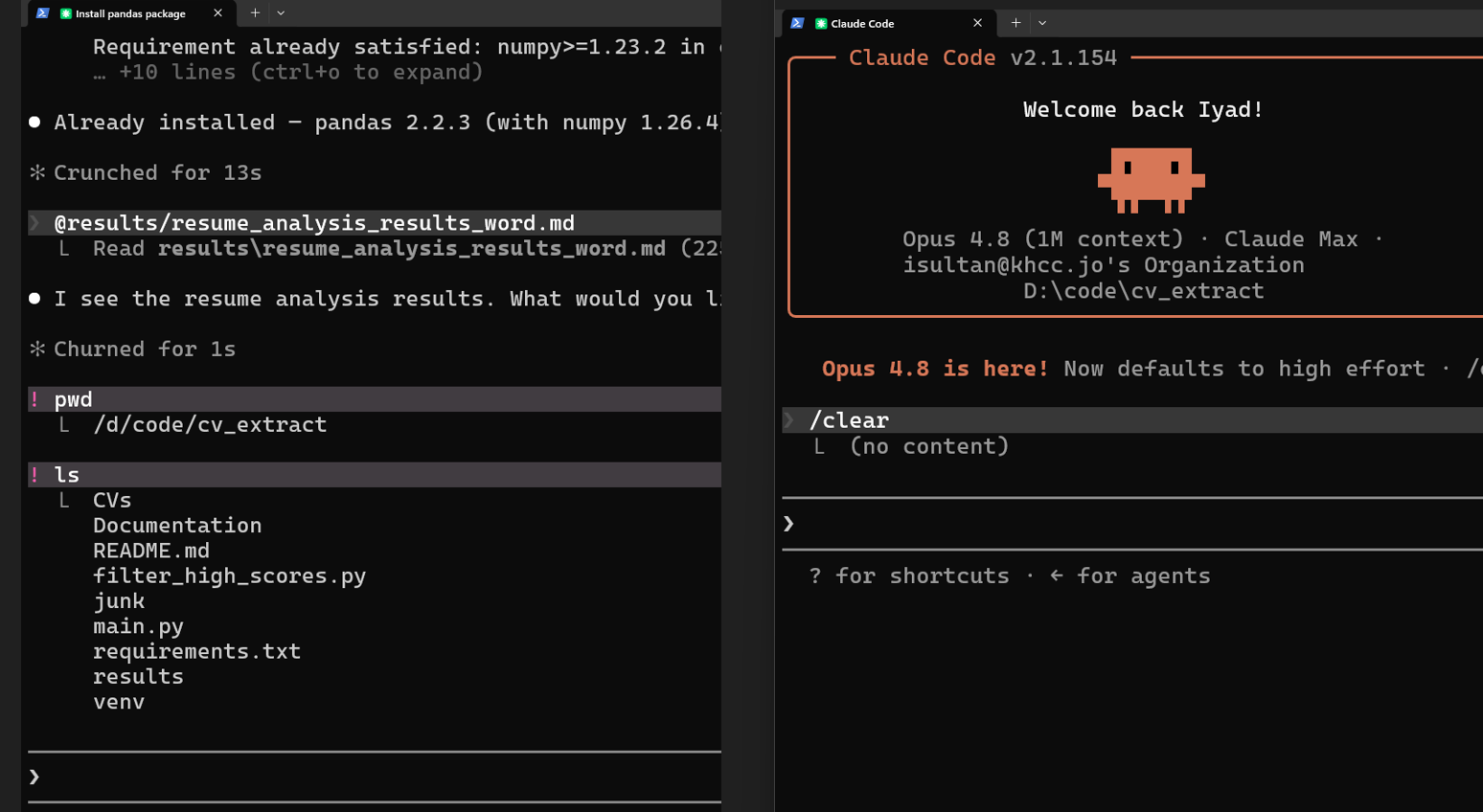
/clear — start fresh
/clear wipes the conversation and starts a new one. The same project, the same CLAUDE.md, the same files on disk — all of that stays. Only the conversation memory disappears.
The rule of thumb: between unrelated tasks, /clear.
You finish working on the AKI pipeline. You are about to start on a Press Ganey feedback parser. These tasks share nothing. Carrying the AKI discussion forward only crowds the new conversation.
/clear
One word. Use it more often than you think you should.
🧠 Remember.
/cleardoes not delete anything important. Your code is on disk. YourCLAUDE.mdis on disk. Your git history is on disk. The only thing that disappears is the chat — which was about to start interfering anyway.
/clear showing a long messy conversation history on the left and the same terminal with a fresh empty state on the rightThe “two failed corrections” rule
If Claude has failed to fix the same bug twice in a row, stop. Do not try a third time in the same conversation.
Why? By the third attempt, the context now contains two wrong hypotheses, two failed diffs, and two rounds of apologies. The third attempt is fighting against that noise, not against the original problem. A clean conversation with a sharper prompt — naming the function, naming the failure mode, naming the input that triggers it — will almost always do better than a third try on a polluted one.
⚠️ Warning. “Just one more try” on a cluttered context is the surest way to burn an hour and ship nothing. After two strikes, clear.
/compact — trim, don’t discard
Sometimes you don’t want to throw the whole conversation away. You just want it slimmer. That’s what /compact does.
/compact asks Claude to summarize the conversation so far, drop the verbose details (the raw file reads, the full command outputs), and continue with just the summary in place of the history.
You can guide the summary. This matters more than people think:
/compact focus on the prompt changes and the failing test cases
/compact keep the column schema and the eval results, drop everything else
A guided /compact is dramatically better than an unguided one. Tell Claude what matters. It is not a mind reader.
💡 Tip. When
/contextshows the window about half full, run a guided/compactbefore the limit forces the issue. If you wait, Claude will auto-compact on its own and may drop the wrong things.
/rewind and Esc-Esc — undo by time
Sometimes the problem is not memory. It is that Claude went down a wrong path five messages ago, made some changes, and you want to roll back.
/rewind opens a list of every prompt in the session. You pick a point. Claude restores the state from then — either just the conversation, just the code on disk, or both. You choose.
Esc-Esc (press the Escape key twice in a row, with the prompt box empty) is the keyboard shortcut for the same thing. If you have a half-typed draft sitting in the box, the first Esc-Esc just clears it; press twice again to open the list.
Esc Esc
[pick a point in the list]
[choose: code only / conversation only / both]
🔧 Technical Stuff. Claude keeps these checkpoints locally, under your home folder. They are not git commits — they live separately, and they are cleaned up automatically after a few weeks. One limit to know: checkpoints capture Claude’s own file edits, not changes made by shell commands — if a Bash command deleted a file,
/rewindcannot bring it back. Within that limit, they are cheap insurance: you can rewind a file Claude touched even if you never committed.
💡 Tip. When Claude does something destructive that you didn’t intend, your first reflex should be Esc-Esc, not panic. Rewind first, then diagnose.
The 1M-token context window
On the newest top-tier models, the window stretches to 1,000,000 tokens. Depending on your plan and version, the /model picker lists this as a separate long-context option — open /model and look for it. It costs more per token. For the right job, it is worth it.
Use the long context when:
- You need Claude to read a whole codebase before planning a refactor.
- You are cross-referencing a long protocol document (a 200-page CAP PDF, a whole clinical guideline) against your own code.
- You have a long, multi-hour session that you don’t want auto-compacted halfway through.
Do not use it when:
- You’re doing daily iteration on small tasks. 200K is plenty.
- You’re running batch jobs over thousands of small inputs (those belong in CLI mode — Claude run as a scripted command rather than a conversation — covered in Chapter 17).
⚠️ Warning. A bigger room does not clean itself. A cluttered context at 1M tokens is worse than a tidy one at 200K. Don’t reach for the long context as a substitute for thinking about what you’ve loaded.
A KHCC walkthrough: extracting 50 pathology reports
The Pathology Extraction Pipeline (described in Chapter 0.5) reads free-text pathology reports and extracts a structured row per report: tumor size, T/N/M stage, margins, histology, grade. A real day of work on this pipeline often looks like running the extractor on 50 reports while you tune the prompt that tells the LLM what to pull out.
Here is the rhythm.
Reports 1–10. Free iteration. You look at each output, tweak the prompt, re-run. The context fills with example inputs, example outputs, your tweaks, Claude’s explanations. This is fine — you want all of that visible while you’re tuning.
Around report 25. /context shows the window about half full. Run a guided compact:
/compact focus on the prompt iterations and the three remaining failure modes — drop the raw report text
This keeps the prompt history and the diagnostic notes but throws away the raw pathology text, which is the bulkiest part of the context.
Around report 35. You have nailed the prompt. It’s stable. Save it into a file in the repo. Then:
/clear
Start fresh for the bulk run. There is no reason to carry the tuning history into the actual extraction work.
The bulk run, all 50 reports. Do not do this conversationally. You don’t want 50 reports in your interactive context. Instead, write a small script that calls Claude once per report, each call in its own clean context. (This is “CLI mode,” and Chapter 17 explains it.) The interactive context is for tuning the recipe. CLI mode is for cooking the meal at scale.
🧠 Remember. Interactive context is for tuning. CLI mode is for running. Mixing them is the most common waste of money I see clinicians make.
When to just close everything and start a new session
A brand-new session — close Claude Code, open a fresh terminal, run claude again — is the right move when:
- You’re switching projects or repositories.
- You’re switching to a task that shares no files with the previous one.
- Claude has been wrong twice in a row on the same problem.
- The window has been more than half full for a while, and a guided compact would lose detail you still need.
- You want to test “is this a context problem or a real bug?” — clearing is the diagnostic.
💡 Tip. When you finish a chunk of work, take 60 seconds to write what you accomplished into a small text file in the repo before you clear. Future-you will be able to resume by reading the file. The chat is short-term memory only. Anything you’ll need tomorrow goes into a file.
Try This
- Open a long-running Claude Code session. Run
/compact focus on [the thing you care about]and read the summary. Notice what survived and what didn’t. - Make Claude do something wrong on purpose (“change this file to break the import”). Then hit Esc-Esc and roll back. Confirm the file is restored.
- Open
/modeland check whether a long-context option is offered on your plan. If it is, switch to it, run/cost(we’ll get to that command in Chapter 7), and look at the price. Decide if the extra capacity is worth it for what you’re doing. - Next time you catch yourself starting a third “no wait, the problem is actually…” correction, stop,
/clear, and write a sharper prompt. Notice how much faster the third attempt resolves on a clean conversation.
Watch Out
- Don’t fly blind on context. Check
/contextas you work. Half full means compact soon; the auto-compact warning means you should already have compacted. - Don’t run
/compactwithout a focus hint. Unguided summaries lose the thing you actually cared about. - Don’t run batch jobs in interactive context. That’s what CLI mode is for. Mixing them wastes money and confuses both of you.
- Don’t use the chat as long-term memory. Anything you need tomorrow goes into a file.
- Don’t switch to 1M context as a workaround for clutter. A bigger room doesn’t tidy itself. Compact first.