Chapter 9: Plan Mode and Thinking
Sometimes you do not want Claude to start typing right away. You want Claude to stop and think first — to look at the relevant files, work out what it would do, and present that plan to you, before any code is touched.
This chapter teaches the single keystroke that does that — Shift+Tab — and the keyword ultrathink that tells Claude to think harder before answering. Together, these are your safety belt: they let you keep Claude on a leash for any change important enough that you want to read the plan before the work begins.
The consultation-note analogy
Think of Plan Mode as the consultation note before the order.
When a complicated patient comes in and you ask for a subspecialty consult, the consultant does not walk in and write orders immediately. The consultant reads the chart, examines the patient, writes a structured note — “here is what I see, here is what I propose, here is my reasoning” — and then waits for you (the primary team) to read the note and agree before anything is actually ordered.
Plan Mode is the same. Claude reads the files, examines the problem, writes a plan, and waits for your approval. Only when you say yes does Claude start writing code.
🧠 Remember. Plan Mode is read-only on purpose. It is the room you walk Claude into when the cost of doing the wrong thing is higher than the cost of slowing down.
How to enter Plan Mode
Press Shift+Tab in Claude Code. Each press cycles through the permission modes you met in Chapter 4 — default, accept-edits, then Plan Mode — and the status line at the bottom of the screen shows which one you are in. Keep pressing until it says Plan Mode; pressing Shift+Tab again cycles you back out.
In Plan Mode, Claude is allowed to do anything that does not change the world:
- Read files.
- Glob and Grep the repository.
- Run read-only Bash commands (
ls,git status,git log,wc -l). - Look at screenshots you paste.
- Think hard.
Claude is not allowed to do anything that changes anything:
- No Write.
- No Edit.
- No
git commit, nopip install, norm. - No destructive Bash.
What Claude produces in Plan Mode is a plan: a written breakdown of what it would do, file by file, change by change, with the reasoning. You read the plan. When Claude presents it, you choose from a short menu: approve it — approving exits Plan Mode by itself and the work begins — or send feedback and keep planning.
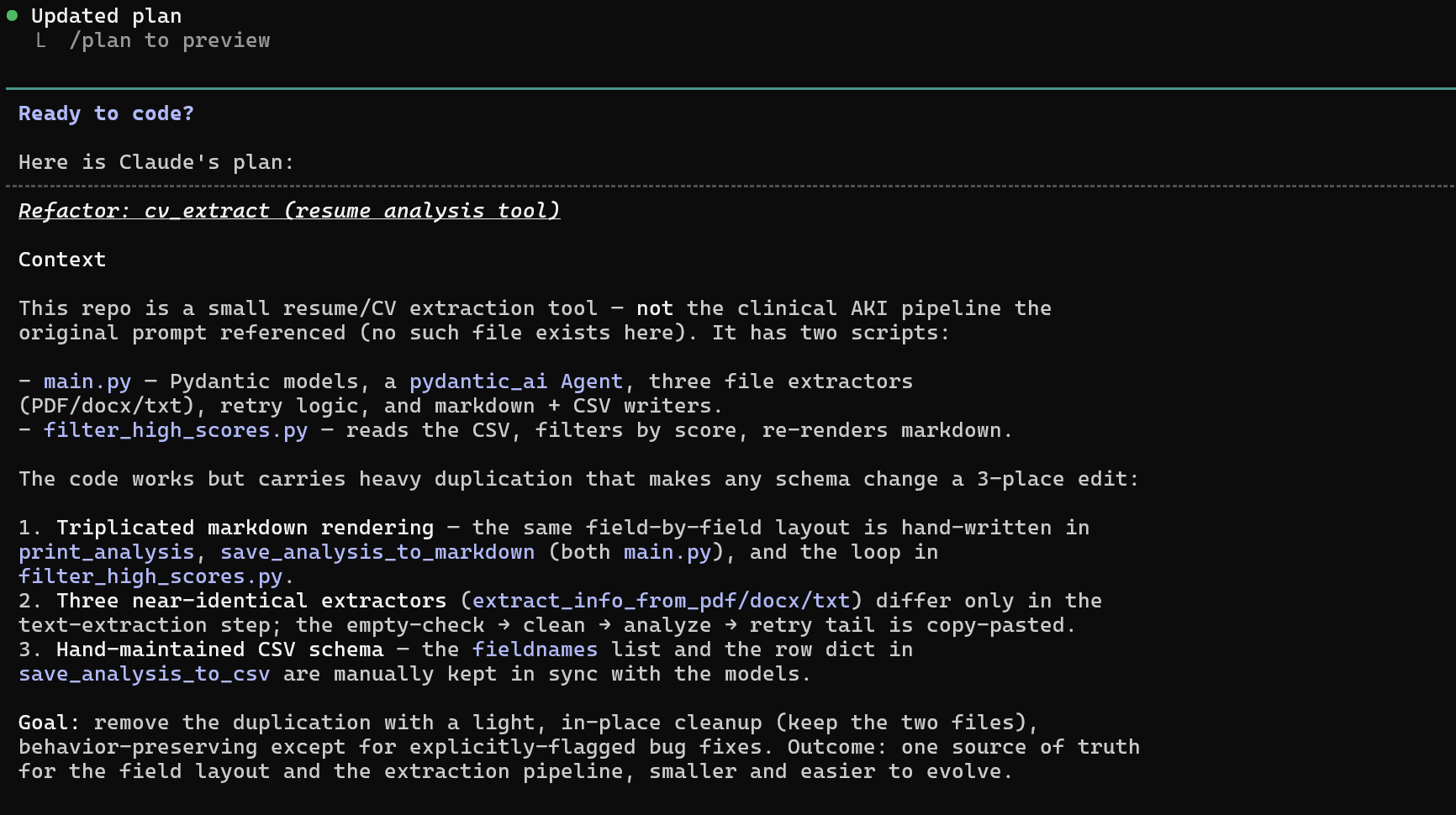
When to use Plan Mode
Use it when the cost of doing the wrong thing is higher than the cost of slowing down.
Some concrete examples of when to plan first:
- Multi-file changes. Any change that touches more than two files. The blast radius of “Claude misunderstood” multiplies with the file count.
- Structural changes. Renaming a function used in many places. Changing a database schema. Splitting a module.
- Anything that touches production data. Anything that runs against patient data, anything an alert pipeline depends on, anything that will end up in
main. - Anything you do not fully understand yourself yet. “I want to add evals to this pipeline, but I am not sure where the prompts live or how they are loaded.” Make Claude read first, plan second, execute third.
When not to use it:
- One-line fixes you can see in your head.
- Typo fixes in a comment.
- Renaming a single variable inside a single file.
- Generating obvious boilerplate.
- Exploring. “What does this codebase look like?” Plan Mode is overkill for browsing.
💡 Tip. A rule of thumb: if the prompt starts with “refactor,” “restructure,” “migrate,” or “add evals to,” you want Plan Mode. If it starts with “fix typo” or “rename
xtoy,” you don’t.
What a good plan looks like
A useful plan from Claude in Plan Mode answers four questions:
- What files will change, and how. Each file gets a line. Each change gets a one-sentence description.
- What new files will be created. With purpose.
- What I am assuming. Listed explicitly. If those assumptions are wrong, you catch them now — not after the changes are live.
- What I am leaving for the human. Anything Claude cannot decide on its own (a credential to use, a clinical threshold to pick, a naming choice).
If you get back a plan that is three vague bullet points, your prompt was vague. Ask again with more detail.
🧠 Remember. A plan you cannot critique is a plan that is not ready. If you can find nothing to push back on, either the change is genuinely trivial — or you didn’t read carefully.
Ctrl+G: edit the plan before it executes
This is the underused half of Plan Mode.
Once Claude has produced a plan, press Ctrl+G. The plan opens in your text editor. You can:
- Delete steps you do not want.
- Add steps Claude missed.
- Rewrite a step’s reasoning where it was vague.
- Reorder, comment, tighten.
When you save and close the editor, the edited plan is what Claude executes from.
💡 Tip. Ctrl+G is where the experienced user lives. Instead of “Claude plans, you approve,” you get “Claude drafts, you direct.” The second one produces dramatically better software.
Extended thinking, and the word “ultrathink”
Behind Plan Mode (and increasingly behind regular prompts), Claude has a separate budget called extended thinking: time and tokens it spends reasoning before it writes the visible reply.
On today’s Sonnet and Opus, extended thinking happens automatically. The model decides how much to think based on how hard the question seems. You usually don’t see the thinking — you just see the answer that came out of it.
You can nudge that budget upward with these keywords inside your prompt:
think— modest extra thinking budget.think hard— more.think harder— more still.ultrathink— the maximum.
These are not magic spells. They are literal instructions to the model: “spend more reasoning tokens before you reply.” On a hard problem, ultrathink on Opus will visibly pause for 30 seconds to two minutes before answering, and the answer will reflect that extra deliberation.
The tumor-board analogy: a fellow asked an easy question at rounds can answer immediately. A fellow asked a hard question at a tumor board will pause, lay out the facts, weigh the options, then propose a plan. ultrathink tells Claude this is a tumor-board-grade question, not a quick-rounds question.
🔧 Technical Stuff. Thinking tokens are billed like output tokens.
ultrathinkon Opus can spend tens of thousands of tokens before a single visible word is written. Use it when the problem deserves it. Don’t sprinkle it on every prompt.
The heavy combination: Plan Mode plus Opus plus ultrathink
For a genuinely difficult task — say, refactoring the AKI Notification Pipeline (Chapter 0.5) so it can switch between KDIGO 2012 and KDIGO 2024 staging criteria without rewriting the alert layer — you want all three at once:
- Shift+Tab into Plan Mode.
- Switch model:
/model opus. - Start the prompt with
ultrathink.
This is the most careful possible setup. You will pay for the extra thinking, but on a task where the wrong refactor costs you a half-day to revert, the math is easy.
A KHCC walkthrough: refactoring AKI staging
You sit down to refactor the AKI staging logic. The current code computes KDIGO 2012 stages inline inside the main extraction notebook, mixed together with the alerting logic. You want to pull the staging out into a separate, testable module, and add KDIGO 2024 as an option alongside.
The AKI pipeline runs every morning against live patient data. The eval suite (the frozen deceased-patient cohort described in Chapter 0.5) must continue to produce identical alerts after the refactor. Any drift and you have regressed, not refactored.
Step 1. Shift+Tab into Plan Mode. /model opus.
Step 2. Prompt:
ultrathink

Read @notebooks/aki_extraction.py and @notebooks/aki_alerts.py.

Goal: extract the KDIGO staging logic into a new module
notebooks/staging/kdigo.py with two functions:
  - stage_kdigo_2012(creatinine_series, baseline) -> stage
  - stage_kdigo_2024(creatinine_series, baseline) -> stage

The main extraction notebook should import from this new module.
The alert layer should not change at all.

Plan the refactor. Identify:
  - Every place 2012 staging is currently computed inline.
  - Every place baseline_creatinine is computed (so we know
    what inputs to expect).
  - The eval cases that protect existing behavior.
  - Any place this could break (silent type coercion,
    pandas vs PySpark series, null handling).

Do not write code. Plan only.
Step 3. Claude produces a 9-step plan. It lists 4 files to change, 1 new file to create, 3 assumptions it is making, and 2 open questions (“should we keep the inline function as a temporary shim, or remove immediately?”).
Step 4. You hit Ctrl+G. You edit the plan in your text editor. You answer the open questions yourself in the plan. You add a step Claude forgot (“add a unit test for the boundary case where baseline is null”). You remove a step that is out of scope. You save.
Step 5. You save and close the editor, then approve the plan from Claude’s menu. Approving exits Plan Mode on its own — no toggling needed — and Claude begins executing your edited version.
Step 6. Claude works through the steps. You watch the diffs as each file changes. At the end, you run the eval suite against the deceased-patient cohort. The alert counts are identical to before the refactor.
Total time: about 90 minutes for a refactor that, without a plan, could have been a half-day of flailing.
🧠 Remember. The eval suite is the verification gate. Before and after a refactor, the deceased-patient eval cohort must produce identical results. If it doesn’t, you didn’t refactor — you regressed.
When planning is overkill
Two calibrating examples.
Overkill: “Add a docstring to this function.” Three lines of code. No planning needed. Just type the prompt.
Overkill: “Rename compute_baseline to compute_baseline_creatinine in this one file.” A find-and-replace. No planning needed.
Not overkill: “Rename compute_baseline everywhere it is used in the repo and update every caller, test, and docstring.” This touches many files. There may be string matches that look like the function name but aren’t. Plan Mode finds those before you make the change.
Not overkill: “Add evals to the chemo prep checker.” This will touch the prompt file, add a new test file, modify the CI configuration, and probably create a new table in aidi_catalog. Plan first, type code second.
🧠 Remember. The bigger the blast radius, the more Plan Mode earns its keep. Trivial changes do not need it. Anything you would regret getting wrong does.
Try This
- In any repository, pick a small refactor task. Press Shift+Tab into Plan Mode. Read the plan. Even if you don’t execute it, notice how the written plan differs from what you’d have done by just typing.
- On a harder task, run Plan Mode with
/model opusandultrathink. Compare the plan to what Plan Mode on Sonnet (withoutultrathink) produces for the same prompt. Feel the difference. - The next time you get a plan back from Claude, hit Ctrl+G and edit it before approving. Add a step Claude missed. Remove one you don’t want. See how the executed change tracks your edits exactly.
- Try Plan Mode on a task you think is trivial. If the plan is one line, you were right; just type the prompt next time. If the plan reveals three files you forgot about, you were wrong — and Plan Mode just saved you.
Watch Out
- Don’t approve a plan you did not read. That is just adding ceremony without adding safety.
- Don’t sprinkle
ultrathinkon every prompt. It is expensive and most prompts do not deserve it. Save it for the genuinely hard ones. - Don’t skip Plan Mode on a multi-file refactor because you are “in a hurry.” The hurry is what produces the broken refactor. Plan, execute, ship.
- Don’t assume Plan Mode stays on. Approving a plan drops you out of Plan Mode so the work can start. If your next task also deserves planning, cycle back in with Shift+Tab.
- Don’t confuse “Claude wrote a plan” with “Claude executed the plan.” Plan Mode is read-only. Until you approve the plan, nothing has changed on disk. That is a feature, not a bug.