Chapter 3: Speaking Claude — How to Write a Good Prompt
A prompt is the sentence (or paragraph) you type to Claude. If you have used ChatGPT, you already know what a prompt is. Talking to Claude Code is the same skill, used a little more carefully, because the agent will not just answer the prompt — it will act on it.
There is no special syntax. No keywords. No XML tags to memorize. You type English. Claude reads it. The same way you would brief a research coordinator over a Slack message, or hand a fellow a one-paragraph task list before clinic.
That is the good news. The catch is that “English” hides a wide gap between a request a human colleague can act on and a request an agent can act on. A colleague will charitably interpret a vague request, and ask three clarifying questions before starting. Claude Code will not ask. It will pick an interpretation and begin.
So the rule for prompting Claude Code is this:
🧠 Remember. The quality of what you get back is almost entirely a function of how specific your prompt is. Better prompts, better results. That is the whole game.
A bad prompt versus a good prompt
Here is the kind of prompt clinicians often type the first time:
Summarize these pathology reports.
A human research coordinator would push back immediately. Which pathology reports? In what folder? What does “summarize” mean — a paragraph each, or a structured table? Which fields? In what file format? Claude Code, in contrast, will not push back. It will pick the most likely interpretation, run with it, and you will get something that is almost what you wanted, except the column names are wrong, the file is in the wrong folder, and three of the fields you needed are missing.
Now consider a different version of the same task:
Read every
./pathology-reports/. For each one, produce a single row in a CSV file calledextracted.csvwith these columns, in this order:filename,tumor_size_cm(a number, blank if not reported),T_stage(one of T1, T2, T3, T4, or “unknown”),N_stage(one of N0, N1, N2, “unknown”),histology(free text),margin_status(one of “negative”, “positive”, “close”, “unknown”). If a field is missing from a report, write “unknown” — do not guess. Show me the script you intend to run before you run it.
This is the same task. The second version takes ten times longer to type, and saves you forty times the cleanup. Claude does not need you to be brief. It needs you to be specific.
This is the same logic the AI Office Pathology Extraction Pipeline uses in production at KHCC (Chapter 0.5 introduces it alongside the rest of the AI Office fleet). That pipeline reads each free-text pathology report, forces the model to output a fixed Pydantic schema (one typed slot per field), and writes a row to a gold table — with the schema doing the work that specificity does in a prompt. The structured schema is just a more permanent version of the specific prompt.
💡 Tip. When in doubt, add constraints. Color, framework, file names, output format, audience, what not to do. Constraints do not slow Claude down; they steer it.
The exception: be vague on purpose, when exploring
There is one situation where vagueness is a feature instead of a bug, and that is exploration of code you do not yet understand.
If a colleague leaves the institution and hands you a 4,000-line R analysis script, the best opening prompt is not a detailed one. It is:
Read
analysis.Rend to end. What would you improve in this file?
That gives Claude permission to surface things you would not have thought to ask about. Hard-coded paths. An old package the script depends on that no longer exists. A loop that should be a single dplyr step. A subtle bug where a patient-level split was accidentally written as a row-level split.
Vagueness, used deliberately on unfamiliar territory, is a mapping tool. Specificity, used on familiar territory, is a steering tool. Knowing which mode you are in is half of prompting.
🧠 Remember. Be specific when you know what you want. Be vague when you do not. Both are valid. Sloppy is what happens when you cannot tell which mode you are in.
Pointing Claude at a specific file with @
Inside a Claude Code session, the @ symbol is a shortcut for pointing the agent at a specific file. When you type @, an in-line file picker opens. You can also just type the path directly, e.g.:
@scripts/extract_grades.py
When you reference a file with @, Claude reads that file into its working memory immediately. It does not have to search the project to find it. This sounds like a small convenience and is actually a large one. Without @, a casual prompt like “fix the bug in the extraction script” sends Claude on a hunt for which script the extraction script even is. The hunt costs tokens (and therefore money), it costs time, and sometimes it picks the wrong file. With @scripts/extract_grades.py, you have told Claude exactly which document to read.
The clinical analogy: it is the difference between telling a colleague “check the chart” (which chart?) and telling them “check Mrs. K’s chart from yesterday’s visit.” The first sends them on a hunt. The second is one step.
💡 Tip. When you know which files matter, name them with
@. You will get the right answer faster.
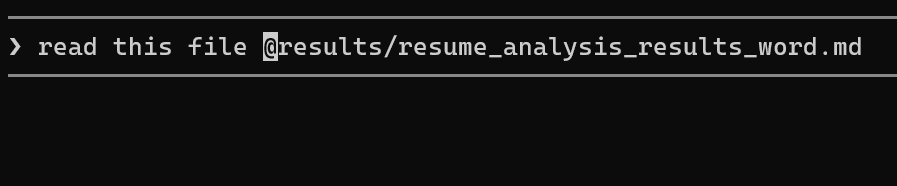
@notebooks/aki_extraction.py in the Claude Code prompt with the autocomplete dropdown showing file suggestionsYou can pile up several references in a single prompt:
@sql/cohort.sql @notebooks/01_extract.py @notebooks/02_dose.py — walk me through how this pipeline assembles the AKI cohort, and tell me where the deceased-patient filter is applied.
(Brief context: the AI Office AKI Notification Pipeline scans every adult inpatient’s serum creatinine trend every morning, applies KDIGO criteria to detect acute kidney injury, and emails the on-call nephrology team about new cases. The “deceased-patient filter” is part of the eval harness — the frozen cohort of deceased patients against which every prompt change is graded.) One prompt that names three files saves ten minutes of “where is…?”
Showing Claude command output with !
Sometimes the thing Claude needs to see is not a file. It is the output of a command — the result of git status, a failing test, the last forty lines of an error log, a row count from a SQL query. The ! prefix inside a Claude Code prompt runs a command in the terminal and drops its output directly into the agent’s working memory for the next thing you say.
!git status
!python extract.py 2>&1 | tail -30
!Rscript -e 'sessionInfo()'
!python scripts/load_vitals.py 2>&1 | head -20 followed by "explain this error", and Claude's analysis responseNow Claude can see exactly what you saw on the screen. No paraphrasing, no “I think the error was something like…”
This pairs with the next idea.
Raw data beats prose
This is one of the most under-appreciated rules of prompting an agent. Do not describe the data. Show the data.
Here is the difference. The clinical analogy is direct: a junior trainee on rounds who says “the patient’s labs look a little off” is much less useful than one who says “the creatinine is 2.4, up from 0.9 yesterday.” The numbers tell the story; the description hides it. Same with prompts.
A bad prompt looks like this:
I’m getting a strange error in the extraction script — it says something about a missing column when I run it.
A good prompt looks like this:
!python extract.py 2>&1 | tail -40
then:
Fix this.
You have just collapsed five back-and-forth turns into one. Claude sees the actual error message, the actual filename, the actual line number. It opens the right file the first time.
You can also pipe data from the terminal directly into a one-shot Claude call from outside a session, like this:
$ cat error.log | claude -p "explain this error and suggest a fix"
The -p flag tells Claude to print a single answer and exit instead of opening an interactive session — Chapter 17 builds whole pipelines out of it.
💡 Tip. If you find yourself typing a long paragraph that describes a bug, stop. Paste the data. Type “fix this.” You will be done in half the time.
⚠️ Warning. Before you paste a log, scrub it. Real patient identifiers — MRNs, names, accession numbers — end up in error logs constantly, because something blew up halfway through reading a report. Once you paste an identifier into Claude Code, it leaves your laptop and goes to Anthropic’s servers. The deny-list patterns we set up in Chapter 4 do not protect pasted text. Look before you paste.
Voice dictation, where supported
In recent versions of Claude Code, the /voice command turns on push-to-talk dictation. Hold the space bar, speak your prompt, release. If you don’t see the command, your version may not have it yet — /help lists what yours supports.
The interesting thing is not the speed. It is the quality. When clinicians speak a prompt out loud — the way they would speak a request to a fellow standing next to them — they naturally include context, the relevant constraints, the audience, and the edge cases. None of that survives the first draft when they are typing. Try it once. Watch your own prompts get better.
🧠 Remember. A spoken prompt is almost always a better prompt than a typed one. Type when you must. Talk when you can.
A KHCC example: bone-only metastatic disease
Here is the shape of a prompt that comes up constantly in AI Office work — pulling a specific, clinically defined concept out of a stack of radiology reports. Suppose you are running a small cohort study and you need to know which patients have bone-only metastatic disease at presentation.
A bad prompt:
Extract bone metastasis from the reports.
That prompt is ambiguous in at least four ways. Which reports? What does “bone metastasis” actually mean — any bone involvement, or strictly bone-only? What output format? What about uncertain or “probable” findings? Should post-treatment patients be excluded?
A good prompt for the same task:
Read every
.txtfile indata/radiology/. For each report, decide whether the radiologist’s impression supports bone-only metastatic disease, which I define as: (a) at least one site of bone metastasis described, AND (b) no evidence of visceral or nodal metastasis in the same study. Treat the phrase “no other sites identified” as supporting (b). Treat any mention of liver, lung, brain, peritoneal, or distant nodal disease as ruling out (b). For each report, return one row inbone_only.csvwith these columns:filename,bone_only(one of TRUE, FALSE, UNCERTAIN),evidence_quote(the sentence you based the decision on). Use PydanticAI with the AI Office Azure OpenAI client and thegpt-4.1-minimodel. MRNs in the filenames have already been Optimus-encoded — do not log raw names. Write the script tonotebooks/bone_only_extract.py, but do not run it yet. Show me the script first.
That prompt is long. It is also unambiguous. Notice what it does:
- Defines the clinical concept — “bone-only” means bone and not visceral and not nodal.
- Specifies the schema — exact column names, in order, with allowed values.
- Forces an evidence quote — so you can spot-check what the model decided on.
- Names the model and library — so you do not get a random scikit-learn solution.
- Reminds Claude of AI Office conventions — Optimus-encoded MRNs, no raw PHI in logs.
- Holds back execution — Claude writes the script and waits for your review before running it.
💡 Tip. A useful habit before pressing Enter on a long prompt: re-read it once, asking “could a smart but literal-minded reader interpret any sentence in two ways?” Every yes is a constraint you forgot to add.
A five-question checklist before you press Enter
When the prompt matters, walk through these five questions in your head. They take thirty seconds, and they save half an hour.
- What is the goal, expressed as a concrete deliverable? (A file, a CSV, a chart, a passing test.)
- Which files does Claude need to read? (Name them with
@.) - Which conventions should the agent follow? (Library, language, naming style, output format.)
- What should it not do? (Don’t run the script yet. Don’t touch the database. Don’t change the existing prompts in the AI Office repo.)
- How will you verify it worked? (A row count, a known answer, a sanity check against a previous result.)
Try This
Open Claude Code in any project. Pick one file you wrote recently — a Python script, an R analysis, a Quarto document, a Django view, anything. Try two prompts back to back.
- Vague: “What would you improve in
@path/to/file?” - Specific: “In
@path/to/file, rename every variable that uses camelCase to snake_case. Then run the existing tests. Then tell me which renames touched a function that other files import.”
Notice the difference between what comes back. Both are valid prompts. They are valid for different jobs.
Watch Out
Do not fall into the “I’ll just clarify later” trap. If your prompt is ambiguous, Claude will not pause to ask — it will pick an interpretation and start writing code against it. By the time you notice that the interpretation was wrong, ten minutes of session time and a few thousand tokens are gone. Spend the extra fifteen seconds on the prompt up front. That is always cheaper than the correction afterwards.